Setting up
Set up Claude for your kit in seven steps
Your kit runs inside Claude, on your own Claude account. Follow these seven steps in order to connect your kit folder and start your first session.
The Kit and The Complete Team set up the same way. Claude changes often, so we check this page and date every change at the bottom.
Last checked: 25 September 2026
1. Check your computer
You need a Mac on macOS 13 or later, or a Windows 10 or 11 PC, and an internet connection. Your kit lives in a folder on this computer, so you need the Claude desktop app, not just the website.
Check your version in About This Mac, or in Windows Settings, then System, then About.
2. Create your Claude account
Go to claude.ai and sign up, or sign in if you already have an account. Use the email address you want your business to use with Claude, because your plan and your app both sit on this one account.
3. Choose your Claude plan
Your kit needs a paid Claude plan. The free plan cannot work with the files in a folder, so it cannot run your kit. You pay Anthropic for the plan, separately from your kit.
| Plan | Price Anthropic publishes | Good to know |
|---|---|---|
| Pro | US$20 a month before tax, or US$17 a month if you pay for a year | One person. Includes Opus 5.5 |
| Max | From US$100 a month | One person, with five or twenty times the usage of Pro |
We recommend Pro for one person, or Max for heavier use. Claude Team gives each person a seat and requires at least two people and a business email address. Your plan is your agreement with Anthropic, so check its terms fit how you use it.
To upgrade, sign in and go to claude.ai/upgrade. Anthropic shows your price in pounds there, so check it before you pay.
4. Install the desktop app
- Go to claude.com/download, choose Mac or Windows and click Download.
- Open the file you downloaded and install the app.
- Open Claude from Applications on a Mac, or the Start menu on Windows, and sign in with the account that has your plan.
You are ready for the next step when you see a message box with a model name beside the send button. Keep the app up to date.
5. Choose Opus 5.5
Click the model name beside the send button and choose Opus 5.5. If it is not in the first list, click More models. Opus 5.5 is Anthropic’s newest Opus model, and your kit is written to run on the latest Opus.
Leave Fable alone for now. Fable 5.1 sits above Opus, but on the Pro plan every Fable message is charged as extra usage from the first one, on top of what you pay for your plan. Once you feel confident, you can try other models for different jobs.
6. Connect your kit folder
Your app may look one of two ways, and both work.
You do not need to do anything to switch.
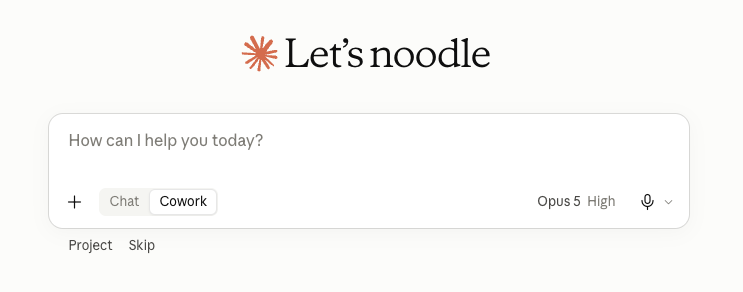
- You see Chat and Cowork under the message box. Choose Cowork each time you start a new conversation for your kit.
- You see no Chat or Cowork option. You are on the newer Claude, where every conversation can work with your files. There is nothing to choose.
- Download your kit from the order email and move the zip into Documents. Double-click it on a Mac, or right-click and choose Extract All on Windows. Keep the resulting Build My AI Team folder there.
- Start a new conversation in the desktop app. If you see Chat and Cowork, choose Cowork.
- Under the message box, click Project, then Add a folder. On some apps the button reads Add folder.

Figure 2Click Project and this menu opens. Choose Add a folder. - Find your Build My AI Team folder, select it and click Open.
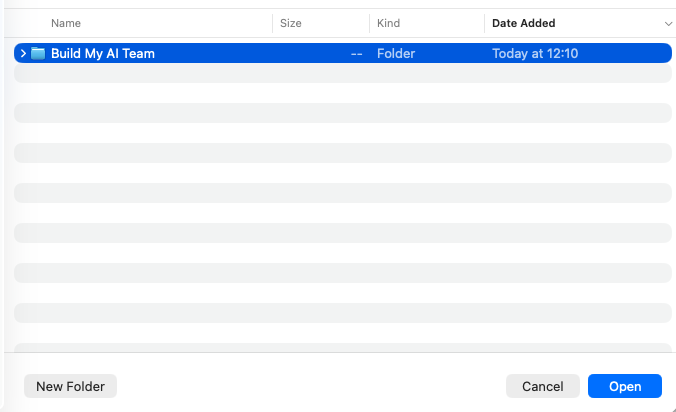
Figure 3Find your Build My AI Team folder, select it and click Open. - If Claude asks to change files in the folder, choose Always allow. That covers this one folder only.
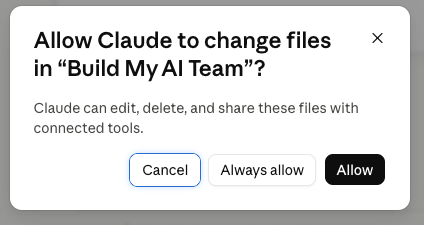
Figure 4The permission ask. Choose Always allow. Claude reaches only the folders you connect, and while you build your team that is this one. Your folder stays on your computer, and Claude reaches it through the desktop app only while the app is open. When a task in the cloud needs a file, Claude fetches a copy of just that file. New files appear in the folder as you go. They are your team’s memory, so leave them where they are.
- Your folder is connected when Build My AI Team shows under the message box.
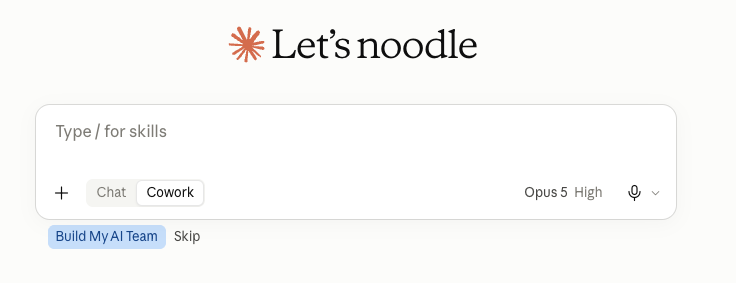
Figure 5This is what a connected folder looks like, with Build My AI Team under the message box.
You can also set it up once as a project.
To save the folder as a project, click Projects, then +, then Use an existing folder. Choose Build My AI Team, name the project and click Create. Start later conversations from that project.
7. Start your first session
Open the 01 - START HERE folder in your kit, then open 02 - START HERE. Click Go to the starting message, then Copy the starting message. Paste it into the conversation where your folder is connected and press Enter.
Claude reads your kit for a moment, then asks about your business, one question at a time. You are up and running.
Good luck, enjoy and have fun building your AI team.
When your build is done, it goes live
Return here when your AI says your record meets The Standard. Install your roles in Claude, move your business files into a permanent folder and keep the kit as reference. Your AI prepares each step with you, and this page has the clicks.
Install your roles
- Ask your AI to package your roles. It makes one zip file for each confirmed role and tells you if it had to separate two roles that would answer the same request.
- In the Claude desktop app, open Customize, then Skills, and upload each zip. Repeat for every role.
- Check each role is switched on in the same list.
Give your business files a permanent home
- Choose where they will live, for example a new folder in Documents named after your business. Keep it outside the Build My AI Team folder.
- Ask your AI which files to move. It lists them: every file whose name starts with My, the My Session Notes folder and your corrections log. Move them yourself, in Finder or File Explorer.
- Connect the new folder the way you did in step 6: Project, then Add a folder. If you saved the kit as a project, make a new project from the new folder.
- Tell Claude to read your files in every conversation. Go to Settings, then General, then Instructions for Claude, and add: “At the start of every conversation about my business, read My Operating Instructions.md in my connected folder and follow it.”
Check it works in a fresh conversation
- Start a new conversation with only your new folder connected. Leave the Build My AI Team folder out.
- Ask: “Which of my files did you read, and which of my roles can you use?” It should name your operating instructions, style guide and business numbers from the new folder, and list your installed roles.
- Give it one real job, such as “Draft a reply to this customer using my style guide and current numbers.” Check it works from your new folder, not from the copies in the kit.
- If any check fails, your kit folder is still there. Reopen it and tell your AI what happened, and it will work through it with you.
- When it names the right files and roles, and the real job comes back right, tell your AI. It ticks your go-live milestones, and the kit becomes reference. From then on you no longer need your coming-back message, because the instruction you saved tells Claude to read your files at the start of every conversation.
What things are called today
| What you are looking for | Where it is today |
|---|---|
| The model menu | Beside the send button. More models shows the rest |
| Whether Claude asks before it acts | The permission setting in the message box: Manual, the default, asks first. Auto does not |
| Which folders Claude can reach | Settings, then Trusted folders |
| Instructions Claude follows in every conversation | Settings, then General, then Instructions for Claude |
| Claude’s memory | Settings, then Memory. It is on by default on Pro and Max |
| Whether Anthropic may use your chats to improve its models | Settings, then Privacy, then Help improve our AI models. For business use, we recommend turning it off |
| How much of your plan you have used | Settings, then Usage |
| Connectors for Gmail, Google Calendar, Google Drive and others | Customize, then Connectors. Your kit brings these in at Stage 3, not on day one |
If something stops you
- You cannot see Cowork. That is expected on the newer Claude. Carry on in the main conversation.
- If Claude cannot reach your folder, open and update the desktop app, start a new conversation and reconnect the folder.
- On Windows, update from claude.com/download. If folder access still fails, ask someone with administrator rights to reinstall the app.
- Claude asks you to wait. You have reached your plan’s usage limit for now. Pro limits reset every five hours. Nothing is lost, because your work is saved in your files.
- A file you know is there reads as empty. OneDrive or iCloud is keeping it online only. Right-click the folder and choose Always keep on this device (OneDrive) or Download Now (iCloud).
- Nothing on your screen matches this page. Ask Claude: “I am trying to connect a folder so you can work with my files. Where is that in the current app?” Then tell us, so we can update this page.
The update log
- 25 September 2026 - Anthropic is folding Cowork into Claude itself, so newer Pro and Max accounts may not show a separate Cowork option. Step 1 now covers both.
- 1 September 2026 - version 1 published.
Does something not look right? Let us know here.